

Introduction
Browser extensions have transformed our digital experience by adding powerful features ad blockers grammar checkers password managers and more. However these add-ons can sometimes backfire leading to erratic browser behavior page errors or even security vulnerabilities. The cause Extension conflicts.Resolving Extension Conflicts in Modern Browsers.
This guide offers an in depth roadmap for identifying fixing and preventing browser extension conflicts in modern browsers like Chrome Firefox Edge Safari Brave and others.
Understanding Browser Extensions
Browser extensions are small software modules that modify or enhance browser functionality. They are built using web technologies like HTML JavaScript and CSS.
Types of Extensions
- Productivity: Grammarly Notion Web Clipper
- Security: LastPass HTTPS Everywhere
- Utility: Dark Reader Save to Pocket
- Media: Picture in picture mode Video downloaders
Extension Conflicts Occur

Multiple extensions operating simultaneously can interfere with each other or with the websites you visit.
Common Reasons
- DOM Manipulation Overlap: Two extensions altering the same elements on a webpage.
- Network Interception: Ad blockers vs VPN proxies.
- Permissions Collision: Competing access to cookies tabs or clipboard.
- Memory or CPU Drain: Overloading browser processes.
- JavaScript Errors: One faulty script affecting others.
Signs You Have an Extension Conflict
Recognizing conflict symptoms is critical
- Pages not loading correctly
- Elements missing or broken
- Slow browser performance
- Websites behaving differently in incognito mode
- Features (e.g. autofill or ad-blocking) failing intermittently
- Errors in browser console (F12 > Console)
Step by Step Troubleshooting Guide
Enter Safe/Incognito Mode
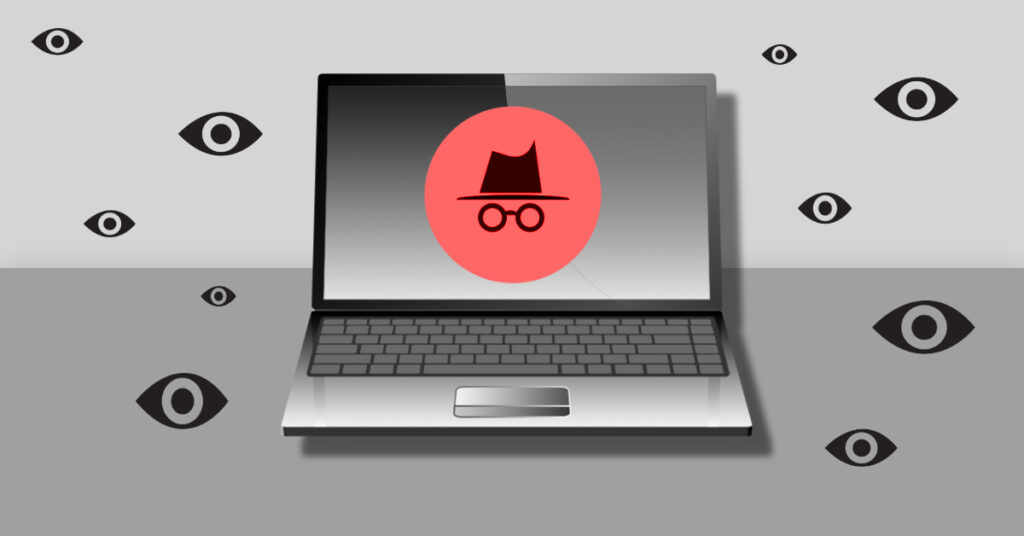
In incognito private mode most extensions are disabled by default.
- If the issue disappears one of your extensions is likely the culprit.
Disable All Extensions
Turn off all extensions. Restart the browser and test.
Re-enable Extensions One by One
Reactivate them one at a time refreshing the page after each.
This isolation method helps you pinpoint the conflict.
Check Permissions
Review what each extension can access. Conflicts often arise from overlapping permissions.
Update or Reinstall Extensions
An outdated or corrupted extension might be the problem.
Resolving Conflicts in Specific Browsers
Google Chrome
- Visit chrome://extensions
- Use the Details button to inspect permissions
- Use Developer Mode to inspect background pages
Mozilla Firefox
- Visit about:addons
- Toggle extensions
- Use about:debugging for real-time diagnostics
Microsoft Edge
- Edge supports Chrome extensions
- Use edge://extensions
- Remove redundant tools like Edge native coupon tool + third party price trackers
Safari
- Extensions are managed via System Settings Extensions
- Safari is stricter often preventing overlapping permissions
Brave and Vivaldi
- Brave: Includes native ad blocking conflicts with uBlock Origin are common
- Vivaldi: Highly customizable but avoid loading Chrome + Vivaldi-specific add-ons together
Identifying Problematic Extensions
Use Chrome Task Manager (Shift + Esc)
See resource-heavy extensions.
Use Firefox about performance
Identifies energy usage and long tasks from add-ons.
Look for these red flags
- Multiple ad blockers
- Multiple VPNs or proxies
- UI modifiers (Dark Reader Stylus etc.)
- Clipboard or tab managers clashing
Tips for Managing Extensions Safely
Install only what you need
Limit permissions wherever possible
Audit regularly review every 3 months
Use trusted developers check ratings & reviews
Uninstall inactive extensions
Advanced Tools for Extension Management
Extension Managers
- Extensity (Chrome): Quick toggling
- Addon Manager (Firefox): Bulk actions
- OneClick Extensions Manager: Minimalist toggler
Dev Tools
- Use browser console to spot extension-induced JavaScript errors
- Load extensions in developer mode to read logs
Preventing Future Conflicts
- Avoid duplicate functionalities (e.g. two dark mode tools)
- After a new install test key websites
- Monitor updates an extension can become unstable after an update
- Subscribe to dev logs if available
Security Risks from Malicious Extensions
Some extensions are trojans in disguise
- Inject cryptocurrency miners
- Redirect search engines
- Steal browsing history or cookies
- Auto click affiliate links
Warning Signs
- Asking for excessive permissions
- Opening popups randomly
- Making unauthorized changes to search homepage
Always review permissions before installing. Prefer open source extensions when available.
Enterprise Browser Extension Policies
Organizations face greater risks from rogue add ons.
Solutions
- Use Group Policy to whitelist approved extensions
- Enforce centralized deployment
- Monitor extension behavior using enterprise tools like
- Google Workspace Admin Console
- Microsoft Intune
- JAMF (for macOS)
- Google Workspace Admin Console
Extension Conflicts in Mobile Browsers
Although limited mobile browsers support add ons too.
Examples
- Firefox for Android: Supports uBlock Dark Reader etc.
- Samsung Internet: Extension support via separate apps
- Kiwi Browser (Android): Full Chrome extensions support
Conflicts are harder to diagnose without DevTools.
Real World Examples of Extension Conflicts
Grammarly vs Dark Reader
Grammarly overlays suggestions in text fields using JavaScript and CSS. Dark Reader inverts colors across pages sometimes hiding Grammarly suggestion popups or causing them to misalign.
Solution: Configure Dark Reader to ignore specific websites or temporarily disable it when writing.
Multiple Ad Blockers
Using both uBlock Origin and AdBlock Plus can create issues such as
- Slower page loading
- Over-blocking essential scripts
- Conflicts with video sites like YouTube
Solution: Stick with one powerful blocker like uBlock Origin and fine tune its filters.
VPN Extension + Proxy Manager
Running both a VPN extension (like NordVPN) and another proxy manager can result in:
- Network errors
- DNS leaks
- Inconsistent IP masking
Solution: Use only one network routing extension and configure it system wide where possible.
Best Practices for Extension Hygiene
To avoid future conflicts adopt these extension hygiene habits:
Monthly Audit Checklist
- Go to your browser extension page
- Ask: Do I still use this extension
- Remove duplicates or outdated tools
- Check the last updated date
- Review privacy policy and changelog
Restrict Extension Access
- Chrome: Click Details → Site access → Choose On click
- Firefox: Restrict access via about:addons
Use Profiles
Create separate browser profiles for
- Work
- Personal use
- Testing
This keeps conflicting extensions from running together.
Managing Extensions at Scale (Teams & IT Departments)
For organizations browser extensions pose productivity and security risks.
Policy Suggestions
- Create an approved list of extensions
- Disable installation from non-approved stores
- Use endpoint management tools to control settings remotely
Recommended Tools
| Tool | Purpose |
| Google Admin Console | Chrome extension management |
| Microsoft Endpoint Manager | Edge extension enforcement |
| Jamf | Safari/macOS control |
Preventing Conflicts via Smart Extension Selection
Be selective with extensions. Look for
- Open source codebase (transparency)
- Active development (frequent updates)
- High ratings and reviews
- Minimal required permissions
Red Flag Extensions
- Unclear publishers or no website
- No recent updates
- Hidden monetization (e.g. injects affiliate links)
Extension Alternatives with Native Features
Often you don need an extension. Modern browsers already support many features:
| Extension Type | Native Browser Feature |
| Screenshot tools | Firefox and Edge have built in tools |
| Dark mode | Available in Chrome and Edge settings |
| Password managers | Built into Chrome/Edge/Safari |
| Reading mode | Native in Firefox Edge Safari |
Fewer extensions = fewer conflicts.
Resolving Extension Conflicts
Can too many extensions slow down my browser
Yes. Extensions consume memory and CPU. Some keep background scripts running, causing delays or freezing tabs.
How do I know which extension is causing the issue?
Use
- Incognito mode
- One by one disabling
- Task manager (Shift + Esc in Chrome)
Can malicious extensions hide their activity
Yes. Some extensions wait weeks before activating harmful behavior. They may change after an update. Always review permissions post update.
What the safest number of extensions to use
There no magic number but keep it under 10 if possible. Each new extension increases the risk of conflict or exposure.
Should I trust browser store recommendations
Generally yes but still vet extensions by
- Reading permissions
- Checking developer support
- Reviewing user feedback
Final Words
Browser extensions are powerful tools but with great power comes great responsibility. Knowing how to identify troubleshoot and avoid extension conflicts is crucial for
- Smooth browsing
- Faster performance
- Increased security
- Better productivity
By following the strategies in this guide you become a smarter safer browser user capable of resolving issues before they disrupt your workflow or put your data at risk.
Conclusion
Browser extensions can be a double edged sword powerful and helpful, yet prone to conflict. As modern browsers become more capable the risk of feature overlap permission clashes and performance hits increases.