

Introduction
The Aw Snap error in Google Chrome is one of the most frustrating messages users encounter. Whether you browsing your favorite site filling out a form or loading multiple tabs this crash disrupts your workflow and can indicate deeper issues.Fixing Aw Snap and Crashes in Google Chrome.
This article is a complete guide to diagnosing fixing and preventing Chrome crashes so you can restore speed and stability to your browser.
Aw Snap Mean in Chrome
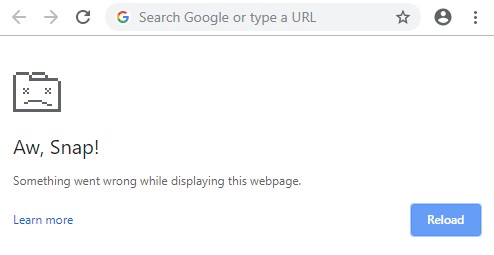
The Aw Snap message appears when Chrome fails to load a webpage. It could be caused by:
- Low system memory
- Software conflicts
- Damaged Chrome installation
- Corrupted user profile
- Malware or adware
- Heavy scripts or extensions
Each Aw Snap! event is a symptom not the root cause. That why we need a systematic approach.
Common Causes of Chrome Crashes
| Cause | Description |
| Memory Overload | Too many open tabs or resource-heavy sites |
| Corrupt Extensions | Malfunctioning add-ons |
| Bad Cache or Cookies | Conflicts from old data |
| Hardware Acceleration | GPU rendering issues |
| Outdated Chrome | Bugs in old versions |
| Conflicting Antivirus | Software interference |
| Malware Infection | Hijackers or adware |
| Broken User Profile | Damaged local Chrome settings |
Basic Troubleshooting
Start with quick fixes
- Reload the page
- Close other tabs
- Restart Chrome
- Restart your PC
- Test a different browser (to confirm it’s Chrome-specific)
If problems persist go deeper.
Clear Cache and Browsing Data
Corrupt cache files can crash tabs.
Steps
Press Ctrl + Shift + Delete
Select All time
Check Cached images/files, Cookies
Click Clear data
Then restart Chrome and try again.
Disable Problematic Extensions
Extensions are often the #1 crash trigger.
Identify & Remove
Go to chrome://extensions
Disable all extensions
Reload the crashing page
If the page works re enable extensions one by one to isolate the culprit.
Use Chrome Built-in Cleanup Tool
Chrome can find and remove harmful software.
Type chrome://settings/cleanup
Click Find
Let Chrome detect and clean suspicious files
It may take a few minutes but can fix persistent crashes.
Test in Incognito Mode
Incognito disables all extensions by default.
Press Ctrl + Shift + N
Visit the crashing page
If it works here the problem likely lies in extensions or cache.
Update Chrome
An outdated Chrome version may contain bugs.
Update Steps
Go to chrome://settings/help
Chrome will auto-check for updates
Click Relaunch after update
Newer versions include stability patches.
Check for Conflicting Software
Some antivirus/firewall or VPN tools interfere with Chrome.
Try
- Temporarily disable security software
- Add Chrome to the whitelist
- Update or change antivirus
Google maintains a list of known conflicting apps at chrome://conflicts (Windows only).
Disable Hardware Acceleration
Hardware acceleration offloads graphics to your GPU but some GPUs misbehave.
Turn it off
Go to chrome://settings/system
Toggle OFF Use hardware acceleration
Restart Chrome
Reset Chrome Settings
This clears customizations without removing bookmarks.
Go to chrome://settings/reset
Select “Restore settings to original defaults”
Confirm reset
Try opening the crashing site again.
Scan for Malware
Use Malwarebytes or Windows Defender to scan for threats.
Malware can
- Inject ads into pages
- Corrupt cache files
- Hijack your homepage
- Crash Chrome entirely
Check System Resource Usage
Use Task Manager (Ctrl + Shift + Esc) to check CPU and memory.
- Chrome should not exceed 70–80% RAM usage
- Watch out for high usage from GPU processes or extensions
Run Chrome with No Extensions
Launch Chrome with a clean slate
bash
CopyEdit
chrome.exe –disable-extensions –disable-gpu
This will help verify if the root cause is extension or GPU related.
Update Windows Drivers & GPU
Outdated graphics drivers browser crashes.
Open Device Manager
Update your GPU and display drivers
Run Windows Update
Restart
Use manufacturer drivers (Intel AMD Nvidia) instead of generic Windows drivers.
Use Chrome Compatibility Mode
Some systems handle Chrome better in older compatibility settings.
For Windows
Right click Chrome shortcut Properties
Go to Compatibility tab
Check Run in compatibility mode for Windows 8
Apply & relaunch
Advanced Flags and Experiments
Tinker with flags if you a power user.
Go to chrome://flags
- Disable Site Isolation
- Turn off Back forward cache
- Disable GPU rasterization
Be cautious flags are experimental.
Review Crash Logs
Type chrome://crashes
Submit reports or examine timestamped crash details
Helps correlate crashes to actions/events
Reinstall Chrome
As a last resort
Uninstall Chrome
Delete profile folder:
C:\Users\<username>\AppData\Local\Google\Chrome
Download a fresh copy from chrome.com
Install and test
Try Chrome Canary or Beta
If stable Chrome crashes
- Chrome Beta
- Chrome Canary
They use separate profiles and installations.
Create a New Chrome Profile
Sometimes only the user profile is corrupted.
Open Chrome Click your Profile icon Add
Create new user Sync or don’t sync
Visit problem site from the new profile
Temporary Fixes for Urgent Access
If Chrome wont open and you need access
- Use another browser (Edge Firefox)
- Use Chrome Guest Mode
- Use Portable Chrome from USB
Chrome Crashes on Startup Specific Fixes
Try
- chrome.exe –no-sandbox
- Disable third-party antivirus
- Rename Default profile folder
Check for corrupted Windows system files:
bash
CopyEdit
sfc /scannow
DISM /Online /Cleanup Image /RestoreHealth
Debugging Aw Snap Pages
Developers often trigger crashes by
- Infinite loops in JavaScript
- Heavy DOM manipulation
- Uncaught exceptions
- Memory leaks
Use DevTools Performance Tab to audit crash points.
Enterprise Users and Admin Tools
Admins managing Chrome in organizations can use
- Chrome Policies via Group Policy Editor
- Remote management via Google Admin Console
- Crash logs and stability monitoring
Aw Snap on Android or iOS
Android
- Clear app cache
- Disable data saver
- Reinstall Chrome
iOS
- Force close app
- Clear Safari data (it affects WebKit)
- Reinstall from App Store
When to Contact Google Support
If nothing works
- Submit a bug at bugs.chromium.org
- Join Chrome Help Community
- Post logs on Reddit’s r/chrome
Frequently Asked Questions
Why does Chrome crash on specific websites
Those sites may contain buggy scripts or demand too many resources.
Can antivirus software crash Chrome
Yes. Some like Avast Kaspersky or Bitdefender interfere with Chrome processes.
Will reinstalling Chrome delete bookmarks
Not if you sync with a Google account. Otherwise export them first.
Diagnosing Using Chrome Task Manager
Many users don realize Chrome has its own Task Manager.
How to Use
Press Shift + Esc in Chrome.
You see real-time CPU, memory, and network usage by each tab and extension.
Look for
- Tabs using high memory
- Extensions with high CPU or energy impact
- Suspicious background processes
End Task on problematic items to regain control without closing Chrome completely.
Use Chrome’s Safe Mode Equivalent
Chrome doesn have a Safe Mode like Windows but running it with certain flags can simulate this.
Open Chrome in a minimal state
On Windows
bash
CopyEdit
chrome.exe disable-extensions disable-plugins disable-gpu
This disables most crash prone components and allows testing the stability of the browser core.
Fix Permissions Issues with Chrome Folders
Corrupted user profiles or bad folder permissions can cause unexplained crashes.
Repair Steps
Navigate to
makefile
CopyEdit
C:\Users\<YourName>\AppData\Local\Google\Chrome
Right click on User Data → Properties → Security → Edit
Ensure your user account has full control.
If unsure rename the folder to User Data.old and restart Chrome.
Analyze Logs Using Chrome Net Internals
For networking-related crashes use this advanced tool:
Steps
Type chrome://net-internals
Capture network events while recreating the crash
Save log file for analysis or for sending to Google support
This helps identify if the crash stems from:
- Proxy misconfigurations
- Faulty DNS resolution
- TLS/SSL issues
Dealing with JavaScript-Heavy Crashes
Modern websites run tons of JavaScript. When Chrome crashes while loading complex scripts
You Can Try
- Disable JavaScript temporarily (go to chrome://settings/content/javascript)
- Enable Pause on Exceptions in DevTools
- Check Console logs for memory-related messages
If a website you develop is causing the issue run Lighthouse audits (Ctrl + Shift + I → Lighthouse tab).
Conclusion
The Aw Snap! crash in Chrome is annoying but usually fixable. Start with simple steps like clearing your cache or disabling extensions and move to deeper solutions if needed. For most users, one or a combination of the above steps will solve the issue permanently.
Still stuck Reach out and I can help with personalized advice for your setup.