

Introduction
The Your Connection Is Not Private error is one of the most common browser security messages that users encounter while browsing websites over HTTPS. Although the message is meant to protect users from unsafe connections it can often be frustrating especially when it appears on trusted sites like Google Facebook or your bank website.Fixing Your Connection Is Not Private Errors.
In this ultimate guide well explain what causes this error how to fix it for both users and website owners and how to prevent it from recurring.
Understanding the Your Connection Is Not Private Error
When you access a website your browser checks the sites SSL certificate to ensure it legitimate and safe to communicate with. If something is wrong such as an expired certificate or a mismatch between the domain and the certificate your browser may block the connection and show a warning.
Matters
This is a security mechanism that protects you from man in the middle attacks phishing and unsafe websites.
Common Variations of the Error
Different browsers display this warning in their own way
Google Chrome
- Your connection is not private
- Error code: NET::ERR_CERT_AUTHORITY_INVALID or NET::ERR_CERT_DATE_INVALID
Mozilla Firefox
- Warning Potential Security Risk Ahead
Microsoft Edge
- Your connection isn private
- Code: DLG_FLAGS_SEC_CERT_DATE_INVALID
Safari (macOS/iOS)
- This Connection Is Not Private
Despite the differences in wording they all indicate SSL or certificate related problems.
Causes of the Error
| Cause | Description |
| Expired SSL certificate | Most common reason |
| Self signed certificate | Not trusted by browsers |
| Domain mismatch | Certificate does not match the domain |
| Incorrect system clock | Date/time affects certificate validation |
| Cache/cookie issues | Stored data may interfere |
| Antivirus/Firewall | May block secure connections |
| Public Wi-Fi | Unsecured networks can trigger errors |
| VPN or proxy | Can interfere with certificate validation |
Step by Step Troubleshooting
Reload and Check the URL
- Sometimes reloading the page (press Ctrl + R or Cmd + R) can bypass the error.
- Double check that you visiting the correct website (https:// no typos).
Check Date and Time Settings
- On Windows
- Go to Settings Time & Language Date & Time
- Go to Settings Time & Language Date & Time
- On Mac
- Open System Preferences > Date & Time
- Open System Preferences > Date & Time
- Incorrect time causes SSL validation to fail.
Clear Browser Cache and Cookies
- Old or corrupted cookies can block proper SSL connection.
Chrome
Settings Privacy Clear browsing data
Choose Cookies and other site data and Cached images and files
Switch to Incognito Mode
- Open a private browsing window (Ctrl + Shift + N)
- This disables extensions and cached cookies, helping isolate the issue.
Update Your Browser
- Outdated browsers may lack updated certificate authorities.
- Update Chrome Firefox or Edge to the latest version.
Check Antivirus and Firewall
- Software like Avast Kaspersky and Bitdefender may block SSL.
- Temporarily disable HTTPS scanning in antivirus settings.
- Do not leave your antivirus disabled for long.
Turn Off VPN or Proxy
- VPNs can interfere with region-specific certificates.
- Disable the VPN or proxy temporarily and retry.
Try a Different Network
- Public Wi-Fi networks often have certificate errors.
- Try accessing the site using mobile data or a different secured network.
Proceed Manually (Not Recommended)
Click Advanced Proceed to [site] (unsafe)
Only do this for trusted sites never for banking or login portals.
Advanced Fixes for Power Users
Flush DNS Cache
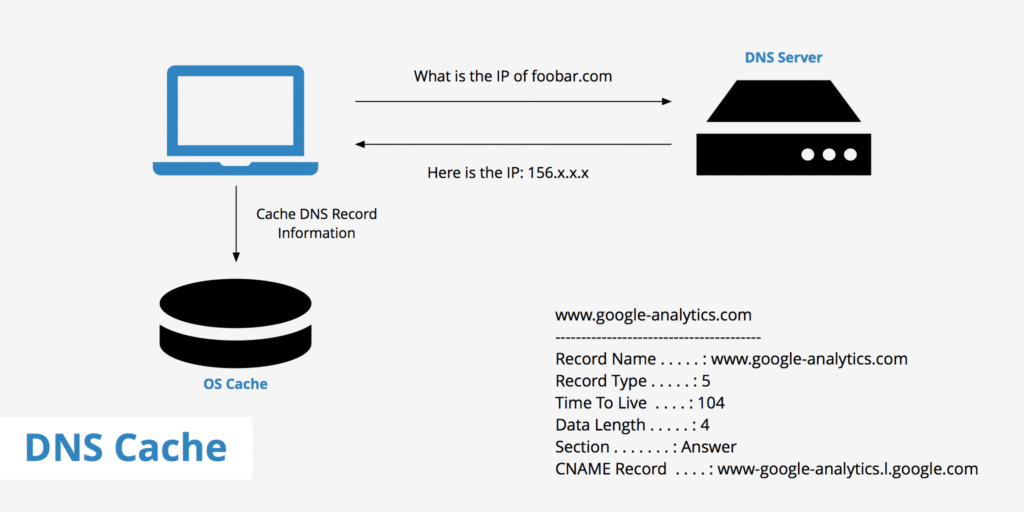
Windows
bash
CopyEdit
ipconfig /flushdns
macOS
bash
CopyEdit
sudo killall -HUP mDNSResponder
Check Certificate Info
- Click the padlock icon in the address bar > View certificate
- Check expiry date and who issued it
Bypass SSL Warning with Command Line
Use this for developers only
bash
CopyEdit
google-chrome –ignore-certificate-errors
Fixes for Specific Browsers
Google Chrome
- Disable experimental QUIC protocol
Go to chrome://flags/ search for QUIC Disable
Mozilla Firefox
- Type about:config in the address bar
- Set security.ssl.enable_ocsp_stapling to false
Microsoft Edge
- Clear site permissions
edge://settings/privacy > Clear browsing data
Safari
- Delete Keychain certificate entries (for advanced users)
Mobile Troubleshooting
Android
- Check system clock and update OS
- Clear Chrome cache
Settings Apps Chrome Storage Clear Cache
iOS
- Go to Settings General Date & Time > Enable Set Automatically
- Restart Safari
How Website Owners Can Fix the Error
If you the owner of the site showing this error
Renew SSL Certificate
- Use a provider like Let Encrypt GoDaddy or Cloudflare
- Certificates usually expire after 90 days to 1 year
Configure HTTPS Properly
- Redirect HTTP to HTTPS using .htaccess or server settings
- Ensure domain matches certificate (e.g www vs non-www)
Test SSL with Tools
- Use SSL Labs to scan your site
- Fix any issues with chain of trust or outdated protocols
Prevention Tips
| Tip | Description |
| Auto-renew SSL | Set your certificate to auto-renew |
| Use updated browsers | Ensures compatibility |
| Enable HSTS | Enforces HTTPS (HTTP Strict Transport Security) |
| Monitor site health | Use tools like UptimeRobot and CertBot alerts |
| Use certificate alerts | Get notified before expiry |
Real-World Scenarios and Case Studies
E commerce Store Loses Customers
A small e commerce store noticed a drop in traffic. On investigation they found that users were seeing a Your connection is not private error. The reason Their SSL certificate had expired without renewal. After renewing the certificate and using an auto renew feature from Let Encrypt trust was restored and traffic rebounded.
University Website Blocked by Chrome
A university website that used a self-signed SSL certificate was suddenly flagged by Chrome. Though students could previously bypass the error Chrome updated security model blocked all non-authority signed certs. The university moved to a public CA signed certificate fixing the issue.
VPN Conflicts with Corporate Site
A corporate employee using a VPN in a different region experienced the error on the company secure portal. The problem was traced to geolocation mismatch and VPN IP range being blacklisted. Using the company approved VPN fixed the issue.
Impact on SEO and Site Trust
SSL certificates are not only about security they also impact SEO and user trust.
Google Rankings
Since 2014 Google uses HTTPS as a ranking signal. Sites with HTTPS rank higher than their HTTP counterparts. Any SSL issue can affect crawlability and indexing thus hurting SEO.
User Trust
More than 80% of users leave a site immediately after seeing a security warning. This leads to:
- Lower session duration
- Lower conversions
- Higher bounce rate
A valid SSL ensures that the padlock icon appears in the address bar an important visual trust signal.
Tools to Test SSL and HTTPS Status
Here are reliable tools to test your SSL certificate and HTTPS health:
| Tool | Function |
| SSL Labs (Qualys) | Full SSL health report including expiry, protocol support |
| WhyNoPadlock | Checks for mixed content (http images/scripts) |
| SSL Checker (DigiCert) | Simple certificate validation |
| CertBot | Automates Let’s Encrypt setup and renewals |
| Security Headers | Checks for HTTPS headers like HSTS and CSP |
Fixing Mixed Content Issues
Even with a valid SSL certificate mixed content can cause the Not Secure warning. Mixed content means some resources (images CSS JavaScript) are still loaded over HTTP.
How to Fix It
- Scan your site using WhyNoPadlock.com or browser DevTools.
- Replace all HTTP links in your HTML/CSS with HTTPS.
- Use Content-Security-Policy headers to enforce secure resources.
html
CopyEdit
<meta http-equiv=”Content-Security-Policy” content=”upgrade-insecure-requests”>
Enterprise-Level Best Practices
Use Wildcard or SAN Certificates
For businesses with multiple subdomains, wildcard certificates (e.g..example.com) or SAN (Subject Alternative Name) certs save time and reduce complexity.
Centralized Certificate Management
Use tools like
- AWS Certificate Manager (ACM)
- Azure Key Vault
- Google Cloud Certificate Manager
These help automate renewals monitor status and deploy SSL across instances.
SSL Expiry Notifications
Set up email or Slack alerts using tools like
- UptimeRobot
- Better Uptime
- Cron jobs with CertBot
Advanced Security Configurations
Enforce HSTS (HTTP Strict Transport Security)
Tell browsers to only load your site over HTTPS
http
CopyEdit
Strict-Transport-Security: max-age=63072000; includeSubDomains; preload
- max-age: Duration in seconds (2 years recommended)
- includeSubDomains: Applies rule to all subdomains
- preload: Submits to the browser’s HSTS preload list (must meet criteria)
Enable OCSP Stapling
Reduces SSL handshake time and improves performance. Available on most modern web servers (Apache Nginx IIS).
Browser Extension Conflicts
Some browser extensions may interfere with HTTPS or SSL
- Ad blockers modifying headers
- Privacy extensions blocking certificates
- HTTPS rewriting extensions malfunctioning
Solution
Disable all extensions and re-enable them one by one to identify the culprit.
Error Codes and What They Mean
| Error Code | Meaning |
| NET::ERR_CERT_DATE_INVALID | Expired or future-dated cert |
| NET::ERR_CERT_AUTHORITY_INVALID | Selfm signed or untrusted CA |
| ERR_CERT_COMMON_NAME_INVALID | Certificate doesn’t match the domain |
| SEC_ERROR_UNKNOWN_ISSUER (Firefox) | Certificate issuer not trusted |
| DLG_FLAGS_SEC_CERT_CN_INVALID (Edge) | Domain mismatch |
These codes help pinpoint the issue.
Developer Tips for Localhost Testing
Local Dev SSL Fixes
If you developing on localhost with SSL use
- mkcert to generate trusted localhost certs
- Enable insecure content allowance in local dev browser settings
Example in Chrome:
bash
CopyEdit
chrome.exe –ignore-certificate-errors –user-data-dir=/tmp/ignoreSSL
Conclusion
The Your connection is not private error is a vital security feature but that doesn mean it always correct or unavoidable. With the steps in this guide both users and developers can systematically diagnose and resolve the issue. Whether it a local system misconfiguration or an expired SSL certificate the fix is usually straightforward.
Stay secure stay updated and always think twice before bypassing any SSL warning